
The best high tech music players

Music players come in a variety of shapes and sizes to fit the needs of just about everyone. The music playing needs of each individual can vary from the gym guy or gal who wants a small player that they can work out to, to the music aficionado who wants something that offers video playback on a wide screen. However, the bottom line is that no matter want you want from your music player, there is one to fit your needs.
Tips for choosing a music player

Today, there is no reason to have to leave your music at home. With the popularity and use of music players, you can take your music with you everywhere you go, whether at the gym, on the train, or even in the office. However, there are a huge number of portable music players on the market. This can leave music lovers wondering what type of player they should get, and what will work best for them. If you are in the market, for this kind of technology, here are some tips, for choosing a music player-
Podcasting music, what you should know

Before you start using music in your podcasts here are some facts that you should know.
Pros and cons of the apple iPod mini
If you are thinking about getting an iPod there are some choices you need to make.There are several different versions from the shuffle, to the nano, to the mini to the humungous iPods with enough memory to store dozens of full length movies.Each iPod has its own set of reasons for buying it (or not buying it).If you are thinking of buying the moderately priced ($100)iPod mini there are some pros and cons that you should be aware of.
Cons
How to convert files to usable formats using windows media player
Using multimedia files on computers is becoming more and more popular and computers are becoming better and better equipped to amaze with media.One of the ways users of Microsoft Windows users can take advantage of these benefits is with Windows Media Player.Media Player is an easy to use program that will store and convert music, videos, and other multimedia forms.But sometimes files need to be converted into a format that can be read by Media Player.Most file conversion is now done automatically when you add a new song or video.You may need to change some settings in Windows Media Player to make the formats work the best on your portable devices like an MP3 player or video player.
The help menu in the toolbar is a very useful place to learn about how to convert formats so that they will work better in Media Player and on a mobile device.Sometimes this requires changing the quality of a file so that the device or program playing the file back will be able to perform optimally and so that the information in the file will be transmitted correctly.Audio and video files may need to be converted to a format optimized for playback on a portable device.This is normally done automatically when a song or video is added to your Windows Media Player library.If this isn't done when you add the files to the library, it can also be done when you are synching the portable device with your computer.These files are kept in a temporary file specified by you so that they are available for synchronization.
How to load multiple CDs with the same track name onto your Sansa
Portable MP3 players are all the rage now. They allow users to download music from a software program and then listen to it in their cars, while working out, or anywhere else.
The Sansa is one of these portable players and is Rhapsody's version of an MP3.Sansa comes in a variety of models, of which the e280 holds the most music and videos, with a memory that is expandable up to 10 GB The Sansa is compatible with any type of music software program. For many people, this is an attractive feature. You can drop music from windows media player, rhapsody, or anywhere else into your sansa player without having to worry about downloading all the software for it.
How to load your personal CDs onto your iPod
If you have an iPod, you're like millions of others around the world. The popular little MP3 players come in a variety of formats, from mini versions to those that hold hundreds of songs and videos.
With an iPod, you can load your songs from iTunes that you purchase through them, and you can also load your personal CDs onto your iPod as well. Part of the immense popularity of iTunes is that it's simple to use, and uploading your CD onto you iPod is no different. Doing this is simple and requires a few easy steps:
Continue reading "How to load your personal CDs onto your iPod"How to load your personal CDs onto your iPod
If you have an iPod, you're like millions of others around the world. The popular little MP3 players come in a variety of formats, from mini versions to those that hold hundreds of songs and videos.
With an iPod, you can load your songs from iTunes that you purchase through them, and you can also load your personal CDs onto your iPod as well. Part of the immense popularity of iTunes is that it's simple to use, and uploading your CD onto you iPod is no different. Doing this is simple and requires a few easy steps:
Continue reading "How to load your personal CDs onto your iPod"How to use Rhapsody
Rhapsody is a popular media player and music software program that allows users to listen to and download music. You download the software for free, and there are free versions of Rhapsody as well as those you have to pay for. The free version allows you to import your CDs, burn CDs, transfer music to your portable players, as well as have access to a number of radio stations and music streams. You will, however, have to pay for music downloads as well as additional subscriptions for various services.
How to use Rhapsody
In order to use Rhapsody, you first have to download it. You can do so by going to their website and installing the software onto your computer. This is free and only requires that you register with the system. You do not need to enter any credit card information, and you don't need to cancel anything after 30 days or anything.
How to use iTunes
Apple's iTunes has taken the world by storm - now, it's virtually impossible to go anywhere without seeing the trademark white headphones everywhere you turn. iTunes is an easy to use program that allows you to organize your music and transfer it to an iPod (Apple's portable MP3 player that is supported by iTunes). In addition, you can also purchase songs from their music library.
If you don't have iTunes but would like it, it's simple to download and use. The first thing you will need to do is download the iTunes program. This is free; all you have to do is go to the iTunes website and click Download Now. iTunes is an Apple program, but you can still use it on a PC as long as you have Windows 2000 or Windows XP.
Continue reading "How to use iTunes"What is the best media player
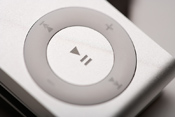
What is the best media player? Finding the best media player for you depends on what you are using the media player for. If you are looking for a media player that will support both audio and video files there is a wide variety of media players available. At the same time if you are looking at media players that play only audio files or only video files then you have a smaller selection.
You will need to figure out what you want your media player to do for you before you begin looking for the best media player. It will also help to know what type of operating system your computer has. Some media players work only on Windows and some media players can work on a few different computer operating systems. The best media player will work for your needs and wants and with an operating system you already have. Doing this will help you to have the least amount of problems when working with your media player.